Solving Visual Studio Problems with non-UTF-8 Encoding

This post relates to Visual Studio  not Visual Studio Code
  .
.
Default Encoding
Problem:
In different regions, Visual Studio’s default encoding may be set to the local regional encoding, not UTF-8.
For example:
- Korean Windows environment (code page 949/EUC-KR)
Microsoft Visual C++ (MSVC) on Korean Windows defaults to reading and writing source files as CP949.
This means that files containing non-English characters (한글), when saved in the regional encoding, and opened or viewed in UTF-8, will display broken symbols.
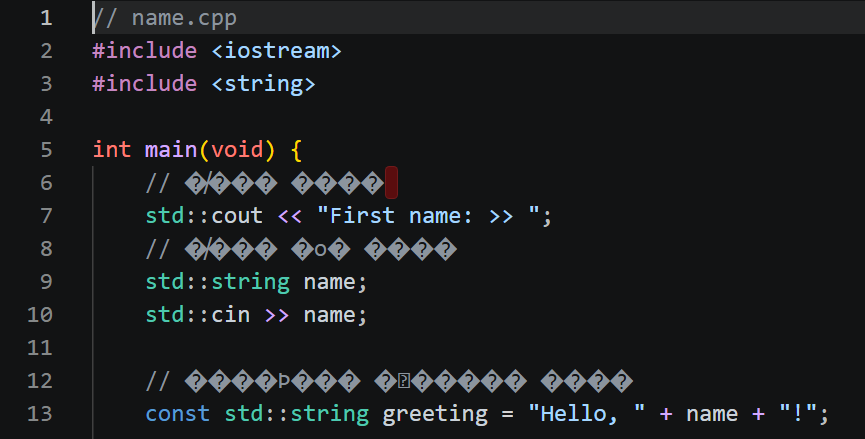
To display the contents correctly, the file must be reopened or viewed in the original regional encoding (EUC-KR).
Save with UTF-8 Encoding
Solution:
Save files to UTF-8 Encoding
There are two methods:
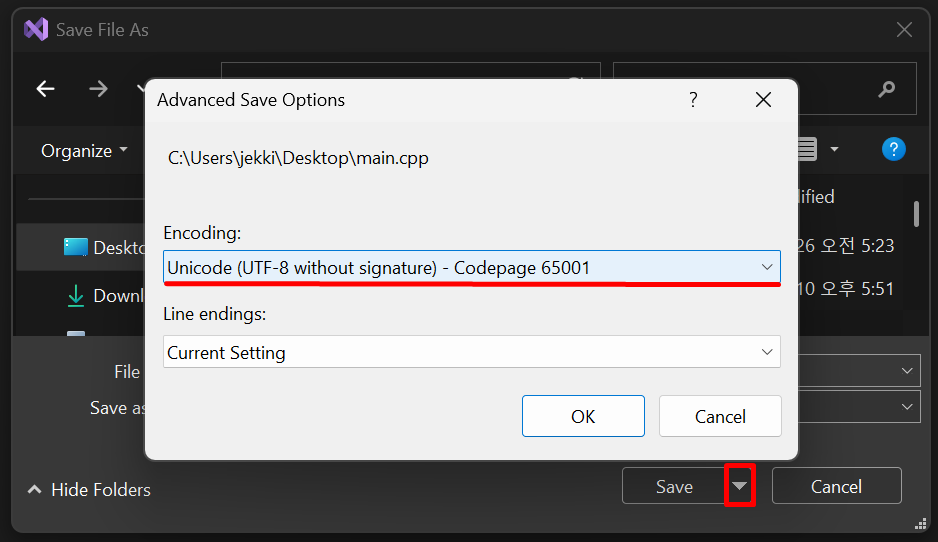
1. “Save As…”
- Select “File -> Save As…”
- In the Save As window, click the dropdown arrow beside “Save”
- Select “Save with encoding…”
- Select “UTF-8 Codepage 65001”
Problem:
- This method requires selecting “Save As…” at least once for EVERY file in the project. (Not viable for large projects.)
2. Add an .editorconfig file
- In the project’s root directory, create an
.editorconfigfile - Define consistent coding styles (such as character encoding, line endings, etc) in the file (example below)
root = true

[*]
charset = utf-8-bom
end_of_line = lf
insert_final_newline = true
Problems:
- The
.editorconfigfile’s settings only apply to NEW files. Old files will still need to be “Saved As…” - If the
charsetline does not containbomthen MSVC will still try to open files in the default regional encoding (because onlyutf-8-bomforces both saving and loading files into UTF-8). This will prevent program execution and produce dozens of “unknown character” errors in otherwise perfect code.
Fix charset = utf-8 code execution errors
If using .editorconfig to save files to UTF-8, but the charset line does NOT contain bom, the command line interpret will break.
Again, the .editorconfig file’s settings only apply to NEW files, so adding bom after the fact will still require “Save As…”.
Solution:
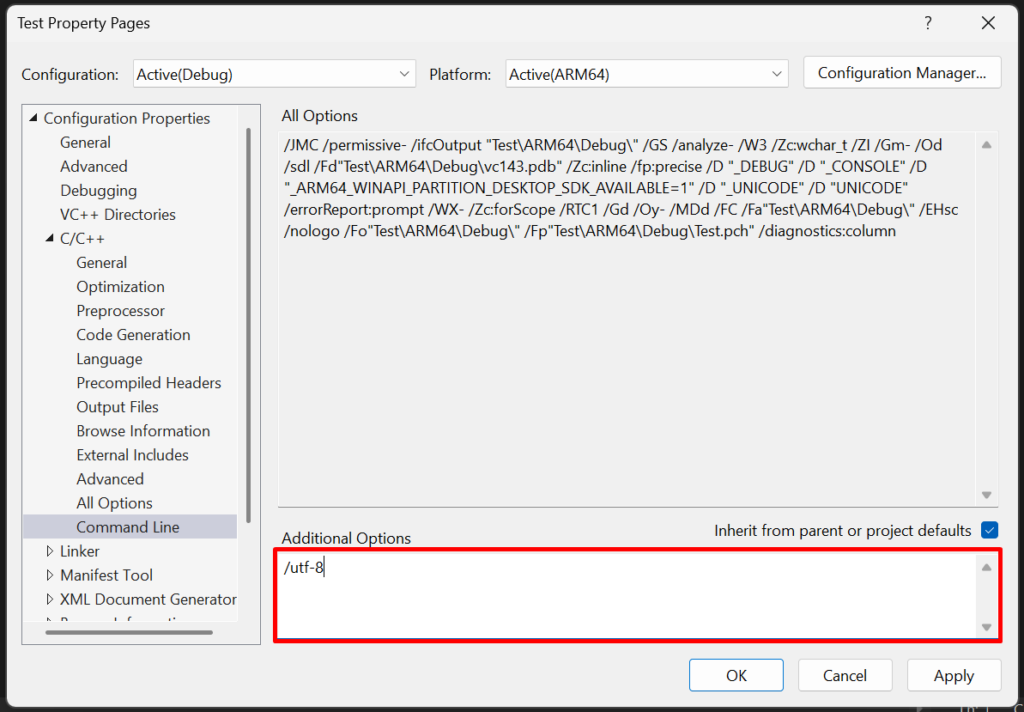
Add /utf-8 as an interpreter option in the Terminal
- In the “Project” menu -> “Test Properties”
- Under “Configuration Properties” -> “C/C++” -> “Command Line (Terminal)”
- In “Additional Options” add
/utf-8
Let Visual Studio manage EditorConfig
Or, alternatively, Visual Studio can manage your .editorconfig file for you. The following page shows many options and methods for working with EditorConfig directly within Visual Studio itself.
Visual Studio IDE: Define consistent coding styles with EditorConfig


